
As I mentioned in my previous post How to set up a blog I will show you how to install WordPress in your hosting account. I am using Bluehost to host my blog and other few blogs such as: blueladyblog.com, dahlina.com and cambodiamirror.org.
I will show you step by step how to install WordPress on your Bluehost account. Then you will realize you can have your own blog in just few clicks.
The post will be long but nothing difficult to understand, I will separate into 3 sessions where you can jump from one to another quickly if you want:
How to install WordPress
After logged into your account, you will see this dashboard:
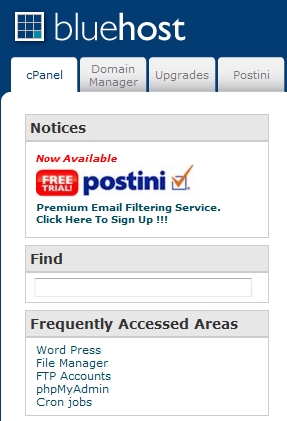
As this is the first time you install WordPress on your account, you might need to type the word “WordPress” into the find field, then you can click on link WordPress to get the next screen as below:
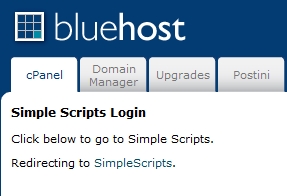
You don’t have to do anything, wait until the screen below appear:
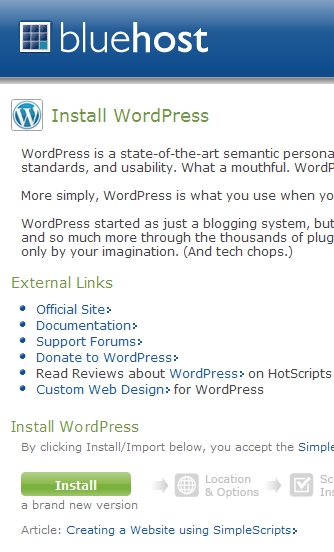
Click on Install button to continue, first option is the choose the latest stable version of WordPress, then select the domain you want to install. If you purchase a hosting account at Bluehost, you surely could find the domain provided for free with your hosting account. In case you want to install WordPress to a domain you bought from another account, you need to add your domain as Add-on domain into Cpanel. I explain at the session 3 of this article how to Add-On domain into your hosting account.
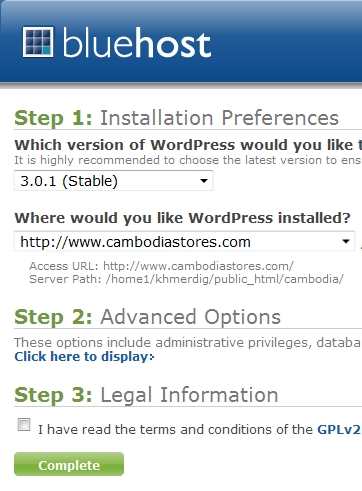
You can click on Complete, but you can put a title for your blog and set up administrator account directly here. To do so, you need to click on “Click here to display”, name your blog name and set password for Admin. Please make sure you will remember this password, otherwise you cannot log in into your blog. This is important, but don’t worry once the installation complete, you also receive an email about all necessary information. Save the mail somewhere!
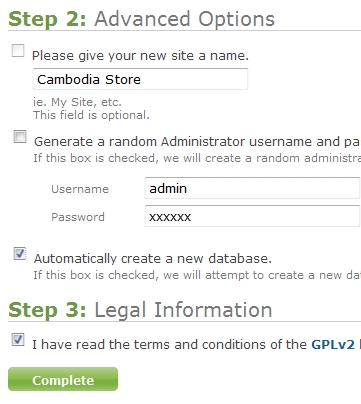
You need to read, agree on terms and conditions then press the button “Complete”.
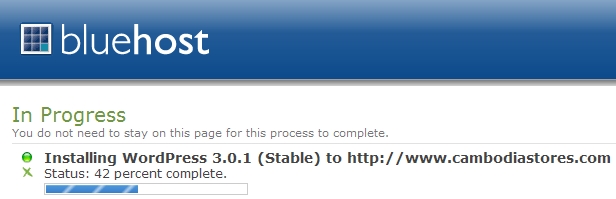
Wait until the Installation complete, you would see the screen as below:
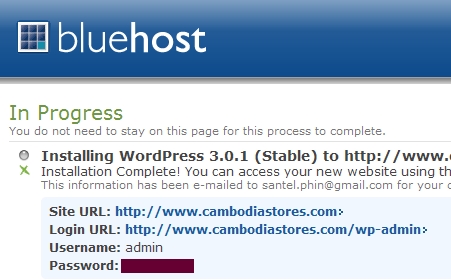
Now you can access to your own blog, just after few minutes of your installation. Now you can have an idea how to set up your own blog.
How to Add-On domain
To add the domain, access to your domain manager as screen below:
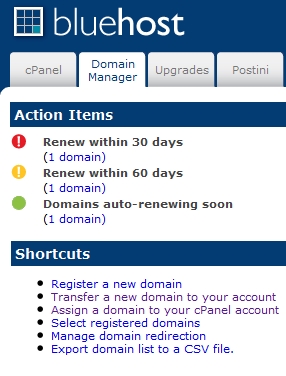
Click on “Assign a domain to your Cpanel account” and select the 2nd option: Use a domain that is not already associated with your account. Then enter your domain name:
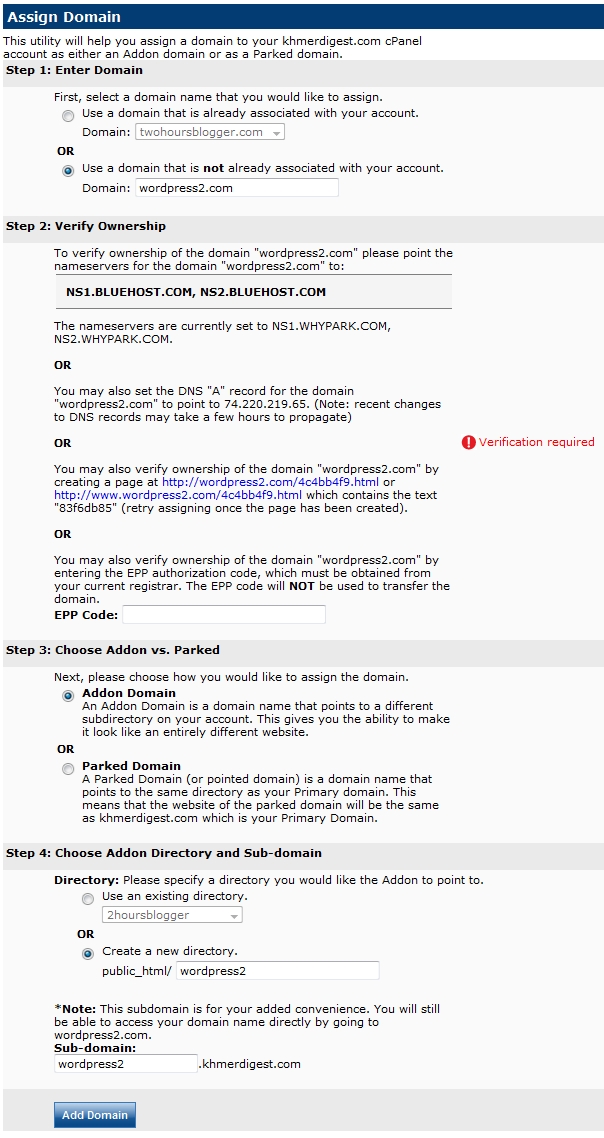
You need to verify the ownership of the domain. There are 4 ways of verifications:
1. Change the nameservers of your domain to point to NS1.BLUEHOST.COM, NS2.BLUEHOST.COM
2. Change the A record of your domain to point to 74.220.219.65 (be careful this will take few hours to propagate)
3. Create a page as required (this is the safe way if you want to move your hosting)
4. Enter EPP Code
You can leave the rest of configuration as default, Bluehost will create new home directory for your domain. You simply need to click on Add Domain to complete the process.
Digging into WordPress
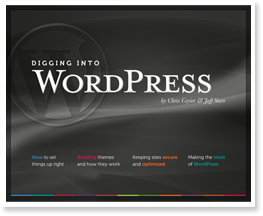 You now have your own blog, totally managed by you. You can start blogging now. If you need to design your website and understand all necessaries elements of the WordPress, there’s nothing complicate to understand. I have purchase this book Digging into WordPress, and I am happy with it. The pdf version is not expensive, it costs only 27 USD. The book will explain about WordPress and provide a lot of tutorial + code that you can just copy/past into your WordPress files, then you will get a power blog on your own.
I hope this article will help you to have an idea how to get your own blog in just few clicks. Let me know if any other further questions you have in mind.
I know it is not easy for the beginners to understand everything. If you think you won’t waste your time with domain, either hosting account either WordPress, you can let me know I can quickly install everything for you and make you blog look simple and good. All you need to do is to spend your time on contents.
Happy blogging to everyone!
Related posts:
- Tutorial how to set up a blog
- how to create a sucessful blog and make money
- How to sign up for Google Adsense if you live in Cambodia
Do you like this story?








 Adsense Tips